
This guide explains how to use Hybrid Work Schedules in Matrix Booking to plan where you will work, see when favourite colleagues are expected to be in the office, and make bookings that support in-person collaboration.
-
Set up your work hours and locations
-
Default office
-
Work hours and locations
-
Sharing your work pattern
-
Work hours and booking times
-
-
-
Make ad-hoc changes to your schedule
-
Add and manage favourite colleagues
-
Book near a colleague
-
Introduction
Hybrid Work Schedules allows you to set where you plan to work and when. You can create a default weekly pattern, update individual days when plans change, and share that information to coordinate office attendance with colleagues.
What you can do with Hybrid Work Schedules
-
Set a default weekly work pattern for each day of the week.
-
Choose whether you plan to work Remote, Office, or Not working.
-
Set a default office to make office-based days quicker to configure.
-
Use your work hours to improve suggested booking times.
-
See your own week in My Schedule in list or calendar view.
-
View favourite colleagues on your schedule so you can plan office time together.
-
Make ad-hoc day-specific changes without changing your whole weekly pattern.
-
Book near a colleague when they already have a booking.
Set up your work hours and locations
Default office
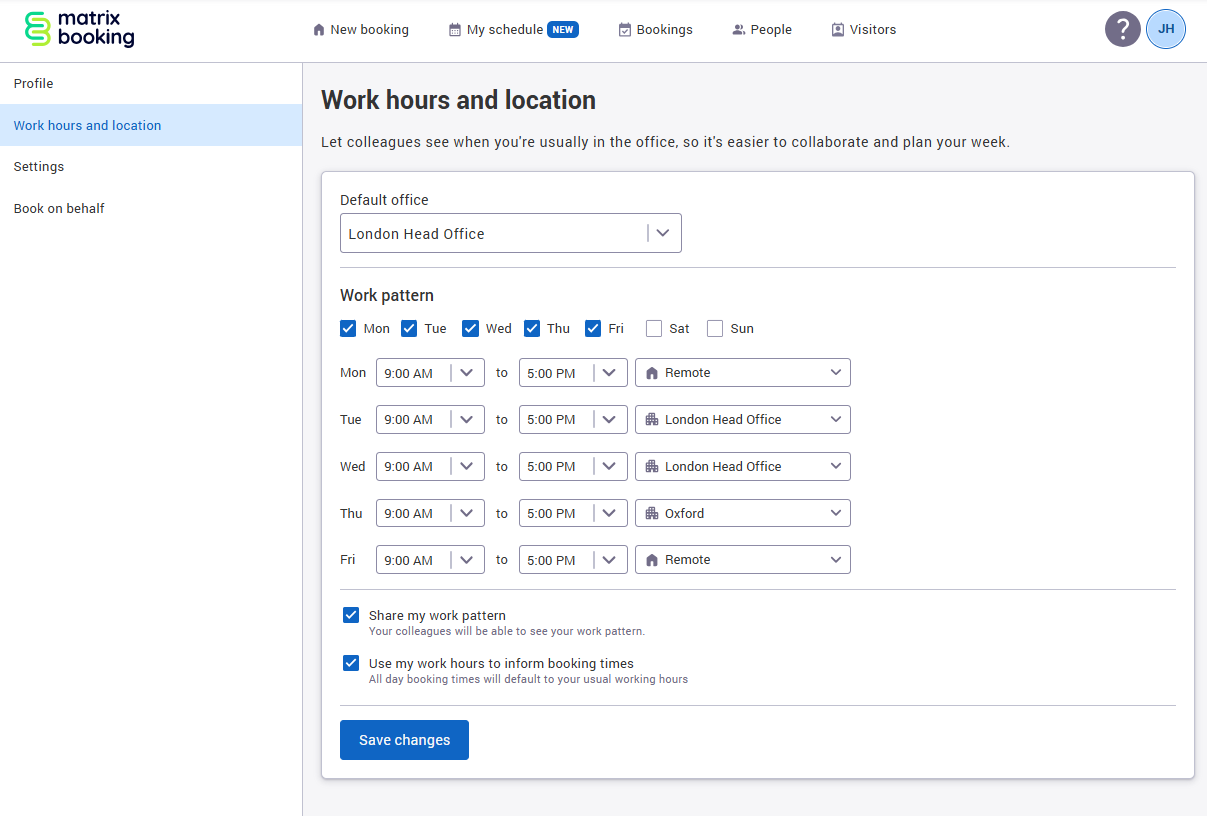
Your default office helps speed up schedule setup and can reduce repeated office selection for office-based days.
To set your default office:
-
Open Work hours and locations.
-
Find the Default office setting.
-
Search for and select your usual building.
-
Save the change.
Work hours and locations
Your work pattern is your weekly work schedule used as your the default for each week. You can set this for each day from Monday to Sunday.
To set your work hours and locations:
-
Open your user settings by selecting the user avatar in the top right of the screen.
-
Select Work hours and locations.
-
Choose the days you want to configure. Any days not selected are set as Not working.
-
For each selected day, set:
-
Start time
-
End time
-
Location
-
-
Choose the appropriate location type:
-
Remote if you plan to work away from the office
-
Office if you plan to work on-site
-
-
If you choose Office, select the building you want to associate with that day.
-
Save your changes.
If you have not set a default schedule yet, My Schedule will show the day as Not set rather than Not working. This helps distinguish between a day you intentionally marked as non-working and a day you have not configured yet.
Sharing your work pattern
Enable Share my work pattern to allow your colleagues to see when and where you’re planning to work so they can plan office time and collaboration
Work hours and booking times
You can also choose whether Matrix Booking should use your work hours when suggesting booking times.
If Use work hours to inform booking times is enabled:
-
All day bookings will default to your configured working hours instead of full office hours.
-
AM and PM suggestions will align more closely with your planned day.
If this setting is disabled, booking suggestions continue to use the usual available office time ranges.
Using your work hours can make desk booking faster, especially if you do not work standard office hours.
My Schedule
My Schedule is your main view for planning the week. It combines your work pattern and relevant bookings into one place.
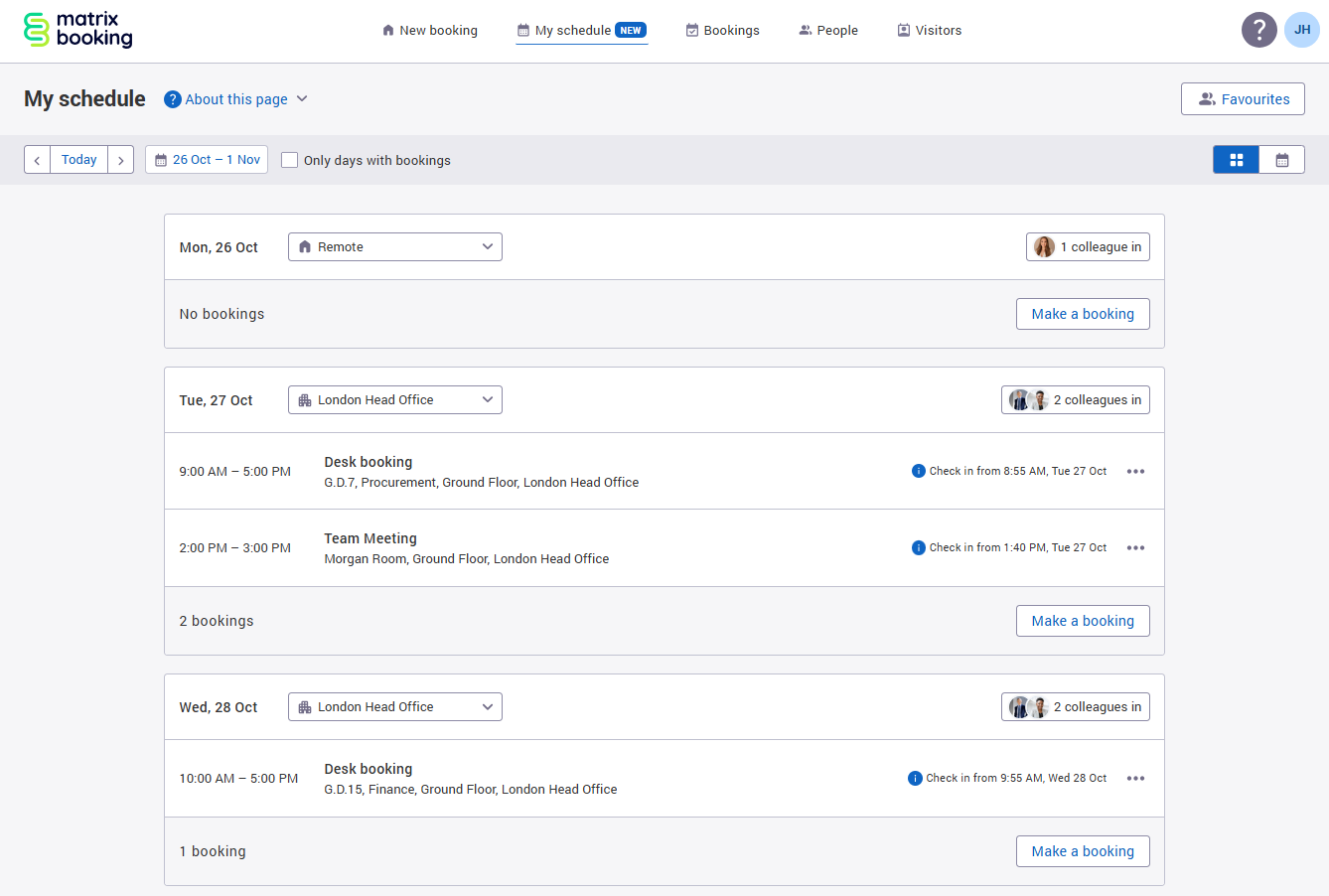
In My Schedule, you can:
-
See your week in list or calendar view
-
Move between weeks
-
Jump back to the current week using Today
-
Review your bookings for each day
-
See which favourite colleagues are planned or booked into the office
-
Make a new booking for a specific day
Make ad-hoc changes to your schedule
Your default schedule is useful for routine planning, but work patterns change. You can override a specific day without changing your whole weekly setup.
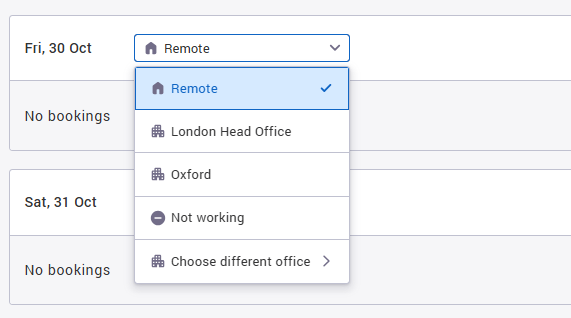
To make an ad-hoc change:
-
Open My Schedule.
-
Navigate to the day you want to change.
-
Open the schedule options for that day.
-
Change the location, office, and/or working times.
-
Save the update.
Ad-hoc changes are useful when you need to:
-
Swap a remote day to an office day
-
Work from a different office than usual
-
Mark a day differently from your usual pattern
Add and manage favourite colleagues
Favourite colleagues help you focus on the people you work with most often. Their planned or booked office attendance can be surfaced in schedule views so you can coordinate more easily.
To add or manage favourites:
-
Open My Schedule or the People area.
-
Select Favourites
-
Search for a colleague.
-
Add them to your favourites list.
-
Remove favourites you no longer need.
Once favourites are added, My Schedule can show when they are expected to be in the office and, where available, the office or booking location associated with that day.
Your favourite colleagues list is only visible to you - no one else in your organisation can see your list or know who you have set as favourites.
You can have a maximum of 50 favourites. If you reach that limit, you will need to remove one before adding another.
Book near a colleague
If a favourite colleague already has a booking for a day, you may be able to make a booking near them.
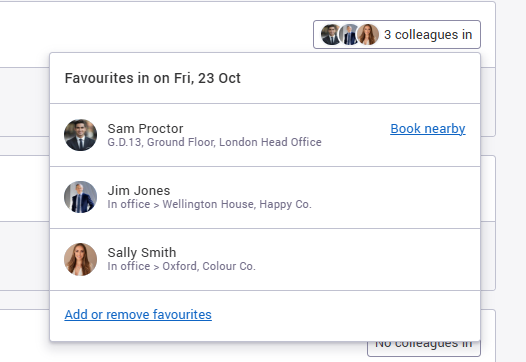
To book near a colleague:
-
Open My Schedule.
-
Go to the relevant day.
-
Find the colleague you want to sit near.
-
Select Book nearby if it is available.
-
Review the suggested area or floor plan.
-
Complete the booking as normal.
This action typically uses the same booking journey as the existing people or floor plan experience, which helps keep the process familiar.
Book nearby is only available when the colleague has booked a resource type that is enabled for ‘find someone’. This will depend on your organisations configuration.
Set or upload your profile picture
Your profile picture helps colleagues recognise you in Matrix Booking, especially in People, favourites and Schedules. If you do not add a picture, your initials are shown instead.
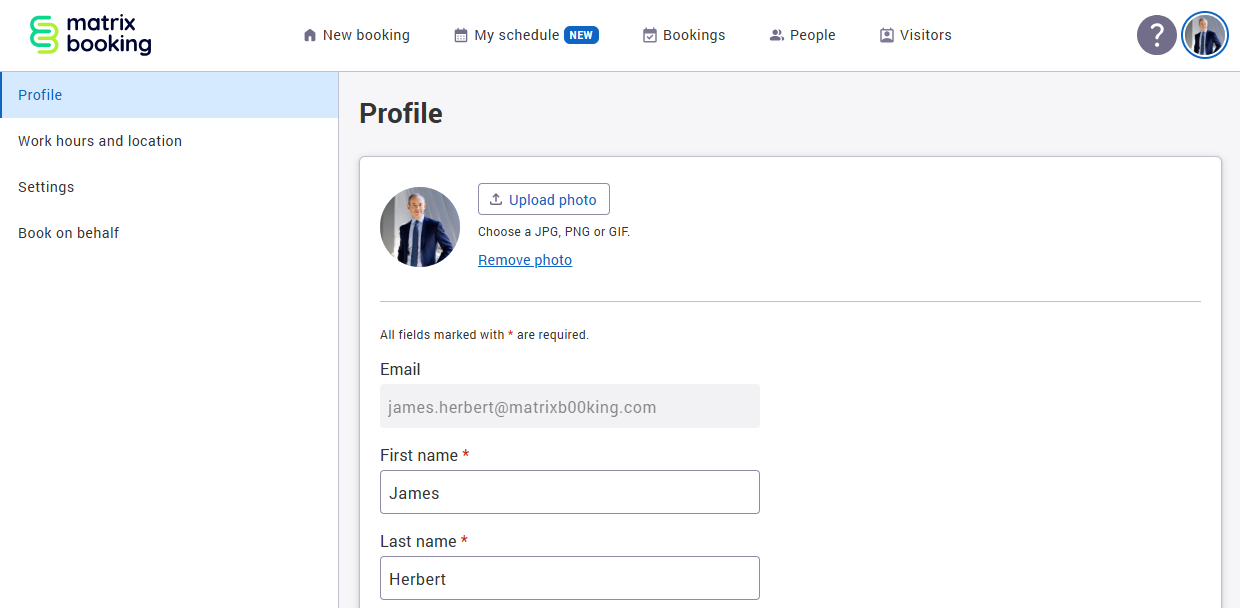
To set or upload your profile picture:
-
Open your user settings.
-
Select Profile.
-
Find your profile picture or avatar.
-
Choose to upload or change your picture.
-
Select an image from your device.
-
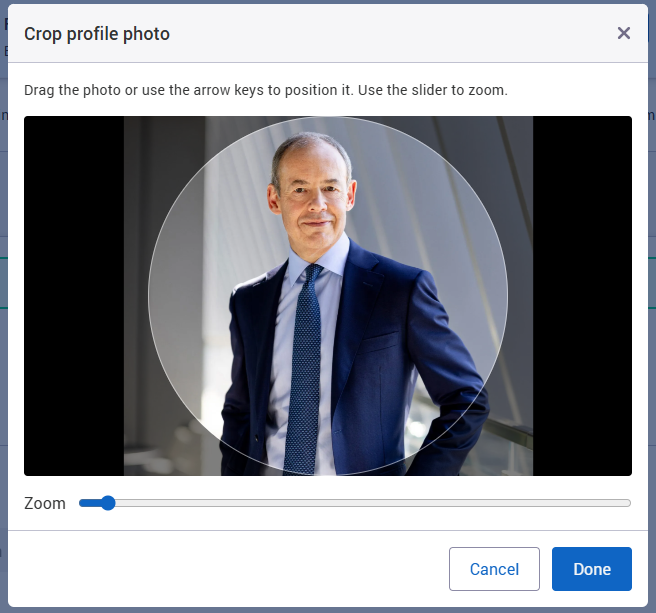
Use the crop and zoom controls to position the image so it works well as a profile picture.
-
Once you click ‘Done’ your picture will be saved.
Matrix Booking processes uploaded images so they can be displayed consistently across the application. Standard image formats are supported.
If your organisation supports Microsoft profile photo syncing, you may also be able to use your Microsoft profile photo instead of uploading a separate image.
You can return to your profile settings later to change your picture, remove it, or choose another available profile picture option.