
Overview
Two-factor authentication (2FA) adds an extra layer of security when signing in to Matrix Booking.
Once enabled by an organisation administrator, 2FA applies to all users who sign in using a Matrix Booking username and password. For users logging in via SSO, Matrix Booking’s 2FA will not apply, SSO authenticated users will continue to use their existing login method which may or may not have your own 2FA solution enabled.
This guide is for Matrix Booking organisation administrators and explains how to:
-
Enable and manage 2FA
-
Configure the available settings
-
Support users with 2FA
Before you start
-
Before enabling 2FA, make sure that:
-
You do not use Matrix Booking Signage, Floor plan kiosk, Arrivals or Welcome apps (these are currently being rewritten but at present are not compatible with 2FA and will cause issues with your devices if you do enable this)
-
You have admin access to the organisation in Matrix Booking.
-
Your users have access to the authentication app you wish to use (Note - only app based authentication is supported at this time)
-
Your users have been informed that 2FA is being enabled, so they are prepared for the setup prompt at their next sign-in.
-
Raise a support ticket for the setting to be made visible for your organisation (this step will disappear once our signage apps are compatible - at the moment this allows us to double check there are no issues)
-
Turn on 2FA for your organisation
2FA is enabled at organisation level and applies to all users who sign in with a Matrix Booking username and password. It cannot be enabled for individual users or roles.
-
Sign in to Matrix Booking as an administrator.
-
Go to Admin > Login Methods.
-
Find Enable two-factor authentication and switch it on.
-
If required, enter a Grace period. This gives users time to complete their 2FA setup before it becomes mandatory.
-
Select Save.
2FA will take effect when each user next signs in.
User setup
What is the user journey for your teams
When users next sign in after 2FA has been enabled, they will enter their username and password as usual and then be prompted to set up 2FA.
Users will need a compatible authentication app. They can either:
-
Scan the QR code displayed on screen using their authentication app, or
-
Enter the setup code manually into the app.
Once setup is complete, the authentication app will generate the verification code required when signing in.
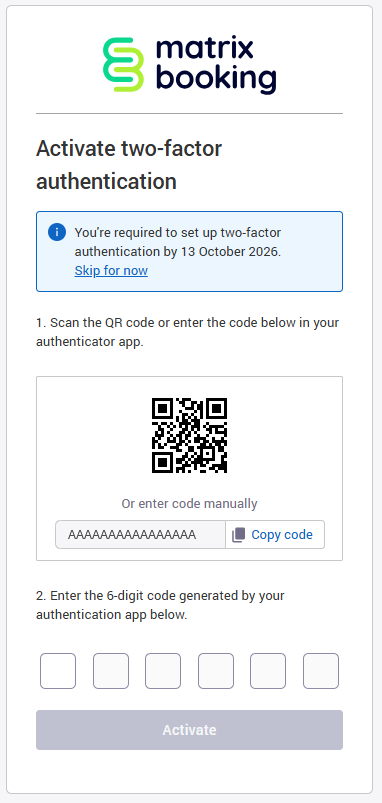
Screenshots showing this when using the web
At their next sign-in after 2FA is on, users enter their username and password as usual, then follow a one-time setup prompt. Using a standard authentication app, scan the QR code or enter the code displayed into the app.
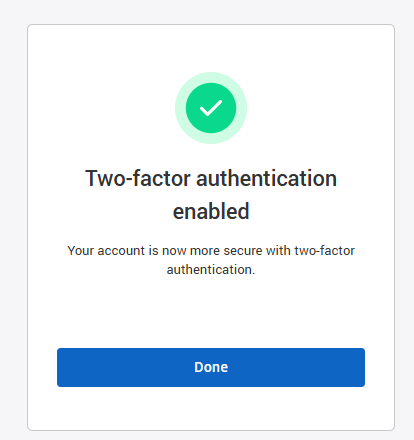
Once the user has scanned or entered the code, and authenticated via their app, they will then be presented with an enabled screen, which indictes 2FA setup is successful
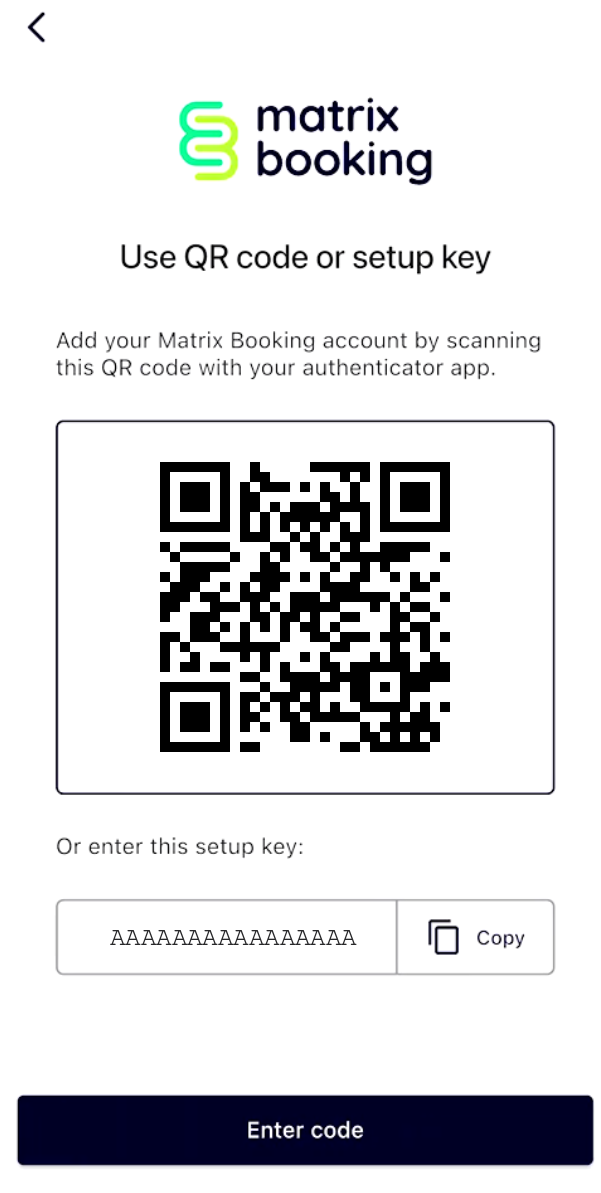
Screenshots showing this when using our mobile app
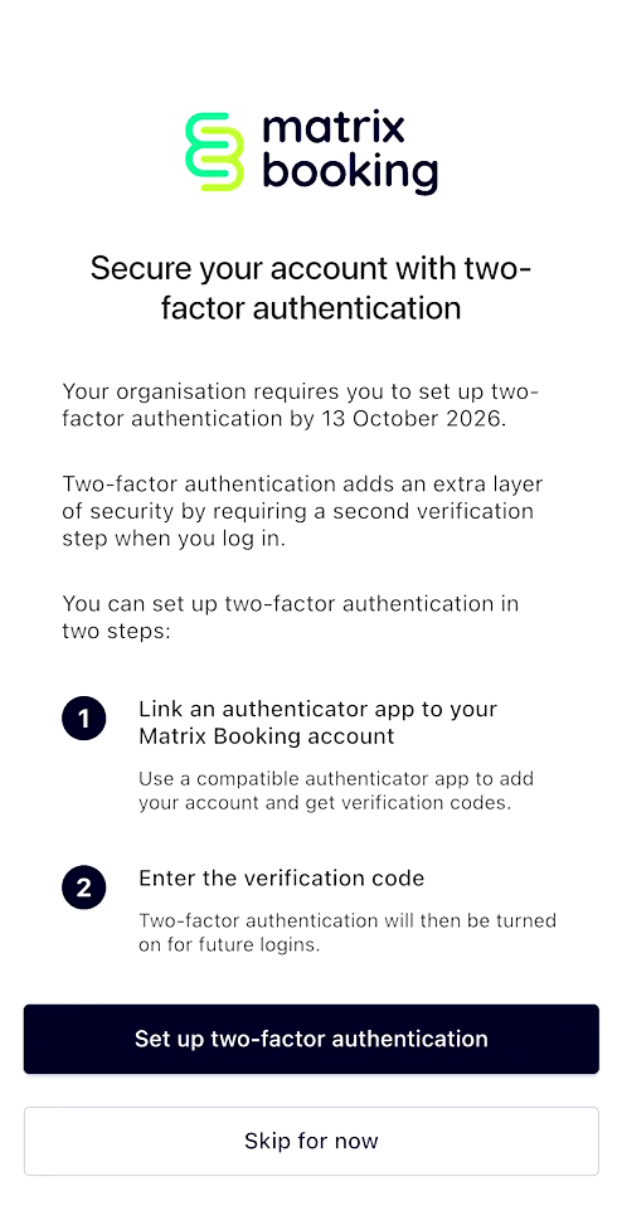
When 2FA is enabled, users will be prompted to set it up the next time they sign in.
Tip: If the user is setting up 2FA on the same device they are using to sign in, we recommend using the web application instead. Alternatively, they can use the copy option to copy the setup key into their authentication app.
-
Select “Set up two-factor authentication”
-
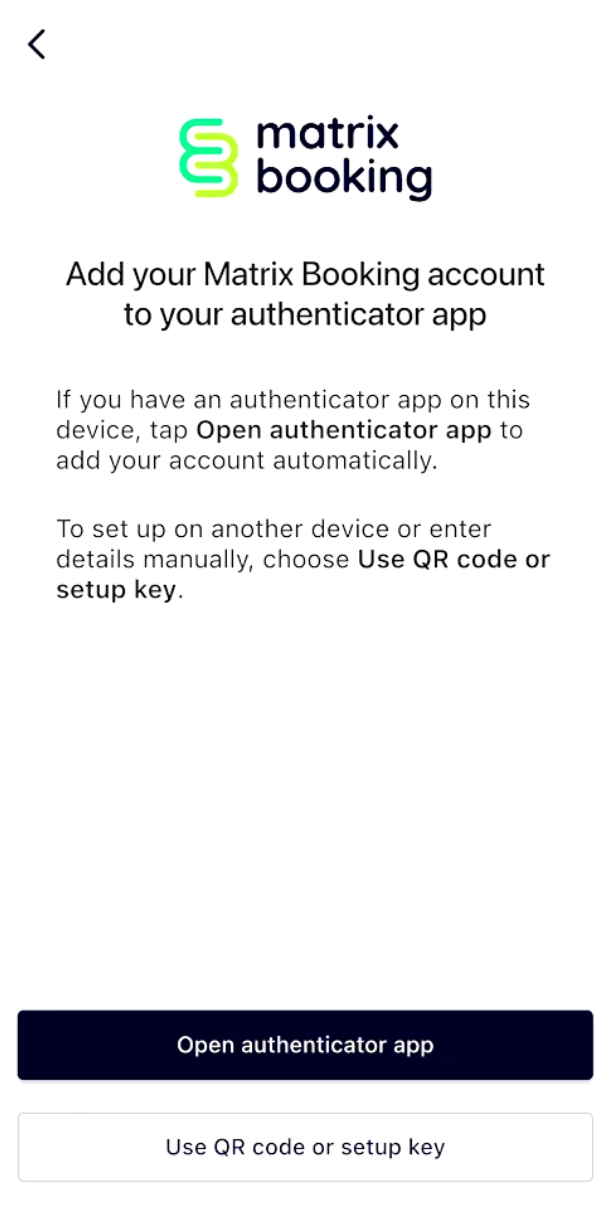
Select Open authenticator app to automatically open the user's default authentication app.
Alternatively, select Use QR code or setup key to set up 2FA manually. This option is required if more than one authentication app is installed.
-
In the authentication app, enter the setup key (recommended) or use the QR Code to authenticate
-
Complete the setup using the verification code generated by the authentication app.
Once the setup is completed, users will be required to authenticate using a verification code from their authentication app.
How to reset a user’s 2FA
A users 2FA enrollment can be reset if user changes or loses their phone, or can no longer reach their verification code.
-
Confirm the user's identity through your usual internal process before making any change.
-
Go to Admin > Users.
-
Identify the user you wish to reset
-
Select the 2FA tab, and click Reset enrollment
-
Click Save to exit.
-
Ask the user to sign in again and repeat setup.
Before reminding users about 2FA
-
When 2FA will be enabled.
-
That they will need access to an authentication app.
-
That they may need their phone during the initial setup.
-
Who they should contact if they need help.
Frequently asked questions
Can I turn on 2FA for admins only? No. 2FA applies to the whole organisation.
We use Microsoft Entra ID (or another SSO). Should we turn this on? Matrix Booking’s 2FA works on Username and Password authentication only. If you have a mixture of SSO and Password authenticated users, then SSO users will continue authenticate via SSO, and users entering a password will use Matrix Booking’s 2FA.
Can users recieve a text message or email instead of using an authenticator app? No, not at this time.
If i disable 2FA for my organisation, then re-enable it what happens to the users? Nothing - their 2FA status is re-enabled, and they can continue to use the application as normal. No re-enrollment is needed.
Can I check to see if a user is enrolled for 2FA? Yes - via the User Screen > 2FA Tab.