
This technical guide explains how to exempt the Matrix Booking Android mobile app in Microsoft Intune. The guide is aimed to be used by your IT team:
SSO login overview
Our new mobile apps (as of version 5) are written in the secure Flutter framework provided by Google.
iOS or iPhone
Our iOS mobile app uses a built-in component called ASWebAuthenticationSession to handle the single sign-on (SSO) login in a secure Safari browser instance. This browser supports certificates and other security requirements usually demanded by SSO login providers. After you’ve successfully logged in, the redirection back to our mobile app is handled by the component.
Android
Our Android mobile app uses a built-in component called Custom Tabs to redirect to a full-featured, secure browser to handle the SSO login. The browser is Microsoft Edge as the first choice, Google Chrome as second choice, and falls back to Firefox if neither of the first two choices are installed. After you’ve successfully logged in, the redirection back to our mobile app is handled by using a custom URL scheme registered and consumed by our app.
Intune app policy errors
How Intune app policy errors occur
When an Intune app protection policy has been applied to a device and:
-
you select the link in Matrix Booking to log in via SSO;
-
or when the browser has successfully logged in to the SSO provider and attempts to get redirected back to the Matrix Booking app;
you’ll be presented with a No available apps error message. This error tends to only effect Android devices.
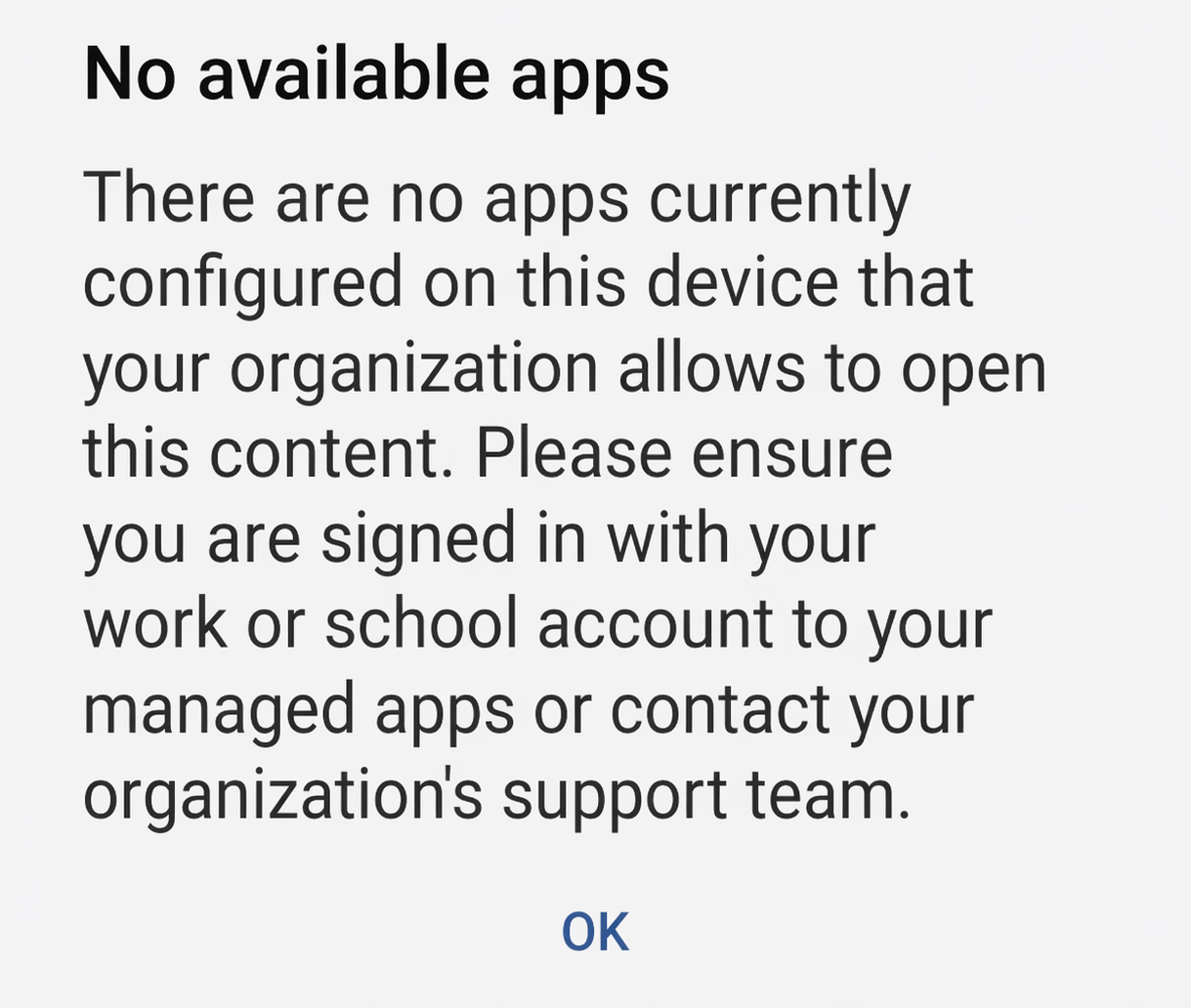
Resolve the Intune app policy error
To resolve the error:
-
Log in to the Intune Portal.
-
Select Apps.
-
Select App protection policies.
-
Select the policy applied to your Android applications.
-
Select Properties.
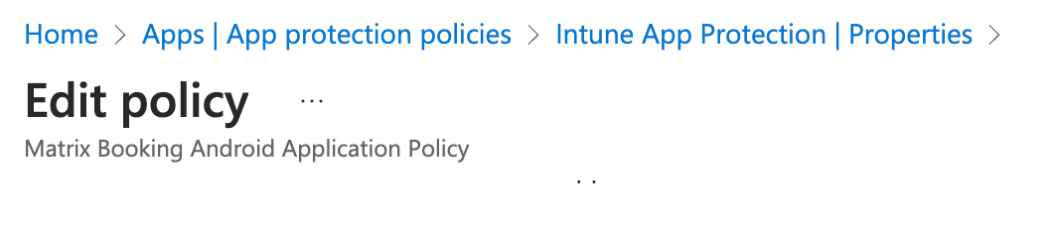
-
Select Edit under the Data Protection section.
-
Select to Policy managed apps from the Send org data to other apps dropdown.
-
Select Select. The Exempt apps screen will appear.

-
Enter “Matrix Booking” in the Name text box.
-
Enter
com.matrixbooking.appin the Value text box.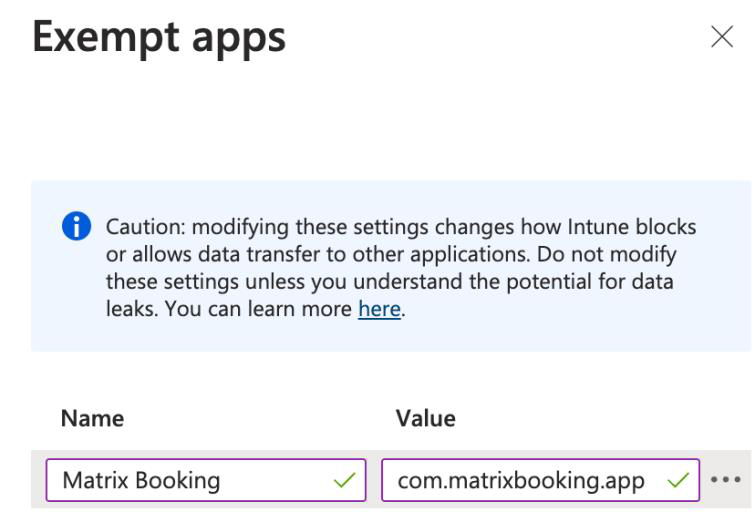
-
Select OK to the Exempt apps addition.
-
Review + save the Edit policy changes.
-
You need to wait while this change is propagated according to your Intune configuration and policy settings.