
In addition to adding and removing resources, it’s possible to move a resource or location to another position in the Locations and resources hierarchy. If the move button (outlined below) isn’t visible to you, please raise a support ticket, to request this feature to be enabled for your organisation.
There are two methods:
-
Drag and Drop
-
Using the Move Tool
To move a location or resource by the Drag and Drop method:
-
Locate the location or resource within your hierarchy you want to move.
-
Select and hold anywhere on the pale green area of that location or resource.
-
Drag-and-drop it on the part of your hierarchy where you want it.
-
Select Save changes.
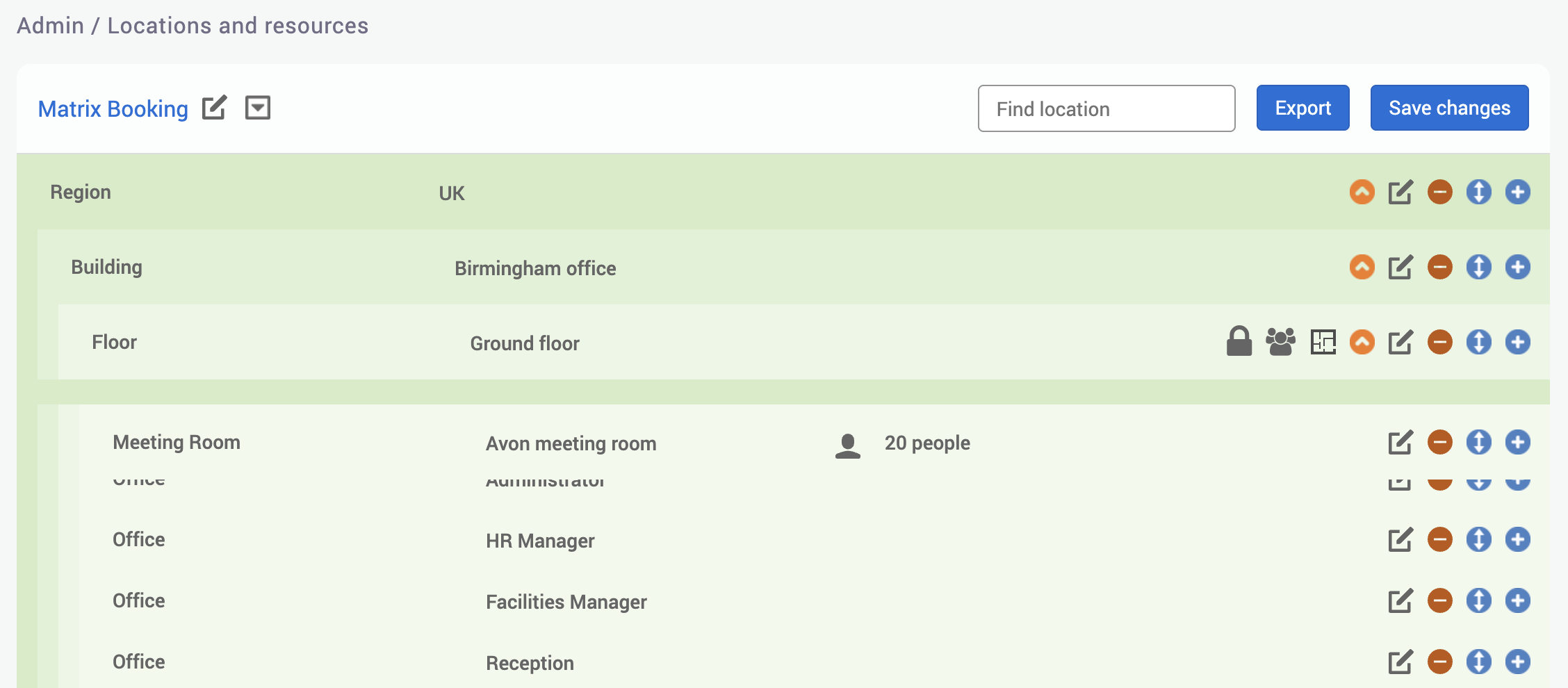
Note: any changes you make won’t go live until you select Save changes. If you release it too soon or release it in the wrong area, don’t select Save changes, but refresh your screen and your unwanted change will be discarded.
To move a location or resource by using the Move Tool:
-
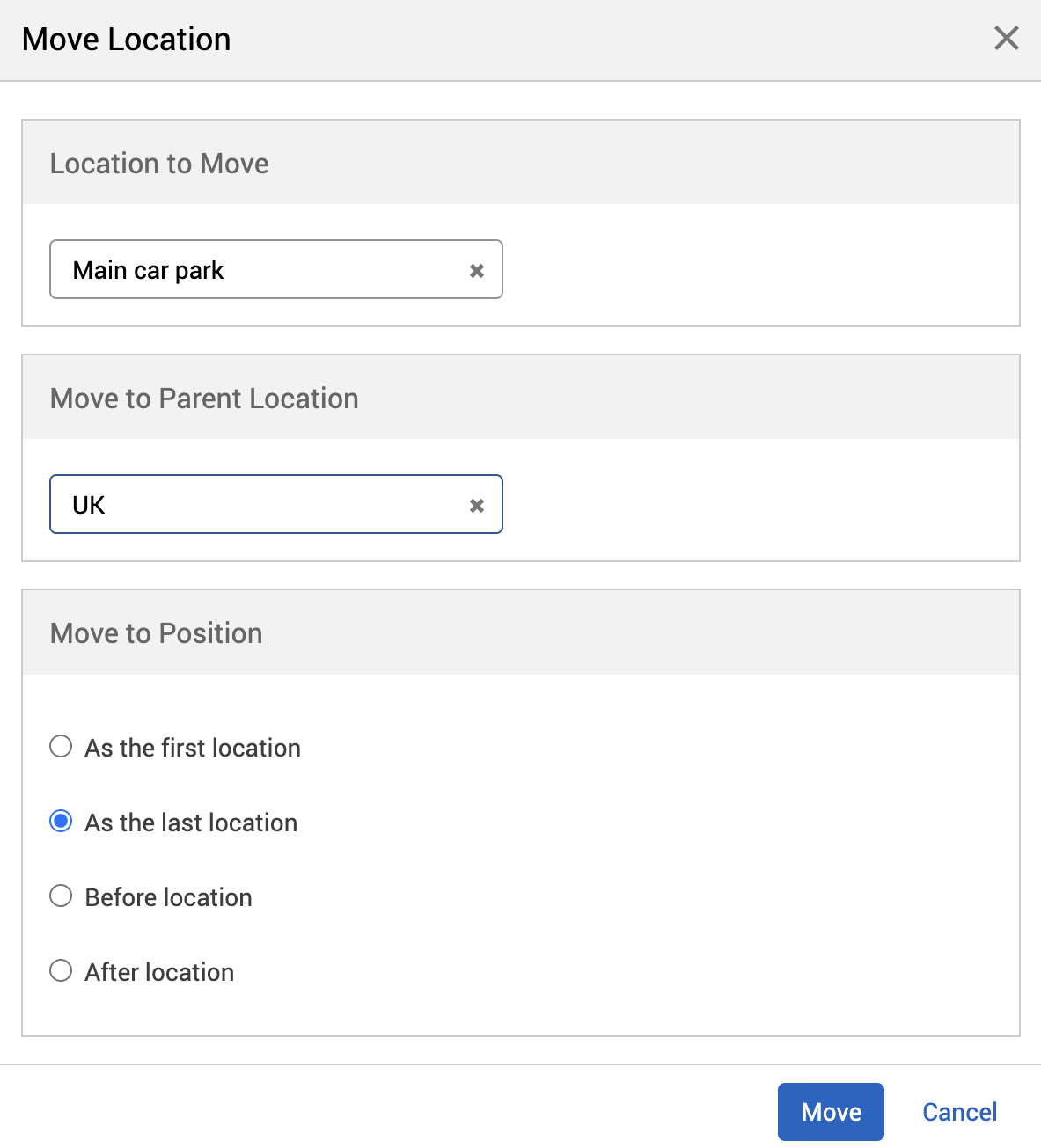
Select the Move button next to the location or resource you want to move. The Move Location or Move Resource dialog will appear. The location will be automatically added to the ‘Location to Move’ field.

-
Begin to enter the name of the location that your location or resource will sit under in your hierarchy into the Find parent text box. The Parent Location dropdown will appear.
-
Select the Parent Location you want from the Parent Location dropdown.
-
In the Move to Position section, you can choose where you want your location or resource to sit specifically in your hierarchy. Select either:
-
As the first location
-
As the last location
-
Before location
-
After location
-
-
Select Move. This will take you back to the focussed view of the Parent Location.
Notes:
-
Once you have selected ‘Move’, the change is confirmed and can not be undone.