
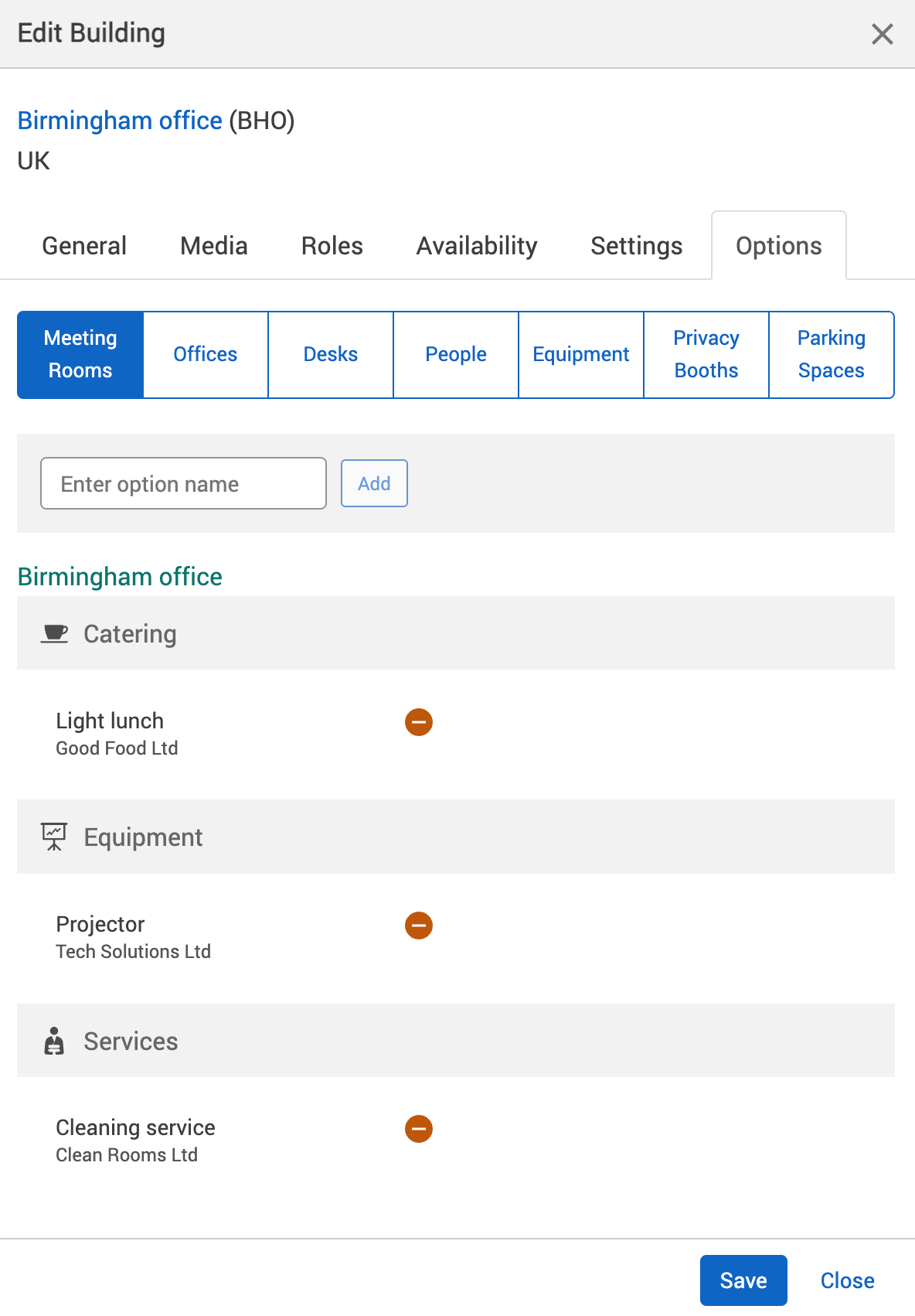
This page describes how you can remove a booking option from a location or resource.
-
Select either the:
-
New Catering Option button.
-
New Equipment Option button.
-
New Services Option button.
-
-
The Add Booking Option pop-up box will appear.
-
Enter the title of the option in the Title text box. For example, “Fish and chips.”
-
Select the tick box if a cost code is required.
-
Select the Provider of your option from the Provider dropdown under the Provider section.
-
Select the tick box under the Notice Period section if a minimum notice period is required by your option provider.
-
If selected, a text box and dropdown will appear.
-
Enter the number of minutes, hours, or days are needed for your provider to prepare the option for you.
-
Under the Time Type section, select when you want your option available by either selecting:
-
Start time only.
-
Start and end times.
-
Same as duration of the booking.
-
-
Under the Quantity Type section, select the amount of your option you want available by either selecting:
-
No quantity (for example, audio/visual (A/V) assistance).
-
Item-based – defaults to 1 (for example, 1 flip chart).
-
Attendee-based – defaults to the number of attendees (for example, 20 attendees means 20 hot meals).
-
-
Select either of the following and the pop-up will close:
-
Save to keep your changes.
-
Close to discard your changes.
-
These choices for the Time Type and Quantity Type depend on the type of option that is being defined. Any bookings made in less than the specified time period will not be able to add that option (for example, catering requires 24 hours notice and the booking was made 12 hours before the meeting, that booking couldn’t add the catering option).