
Introduction
Workplace Roles facilitates the assignment and management of auxiliary duties/responsibilities to personnel within Matrix Booking.
This feature set enables the identification of staff members who possess specific organisational responsibilities—such as First Aiders, Fire Wardens, or Mental Health First Aiders.
In case of an emergency, users can instantly locate these important people in the office based on where they have booked.
Workplace managers gain actionable insights into the distribution of workplace responsibilities, ensuring that essential services and safety protocols are adequately covered.
Users can be assigned to workplace roles by an admin, or they can assign roles to themselves if self-assignment is enabled for that role.
What you can do within the workplace roles screen
-
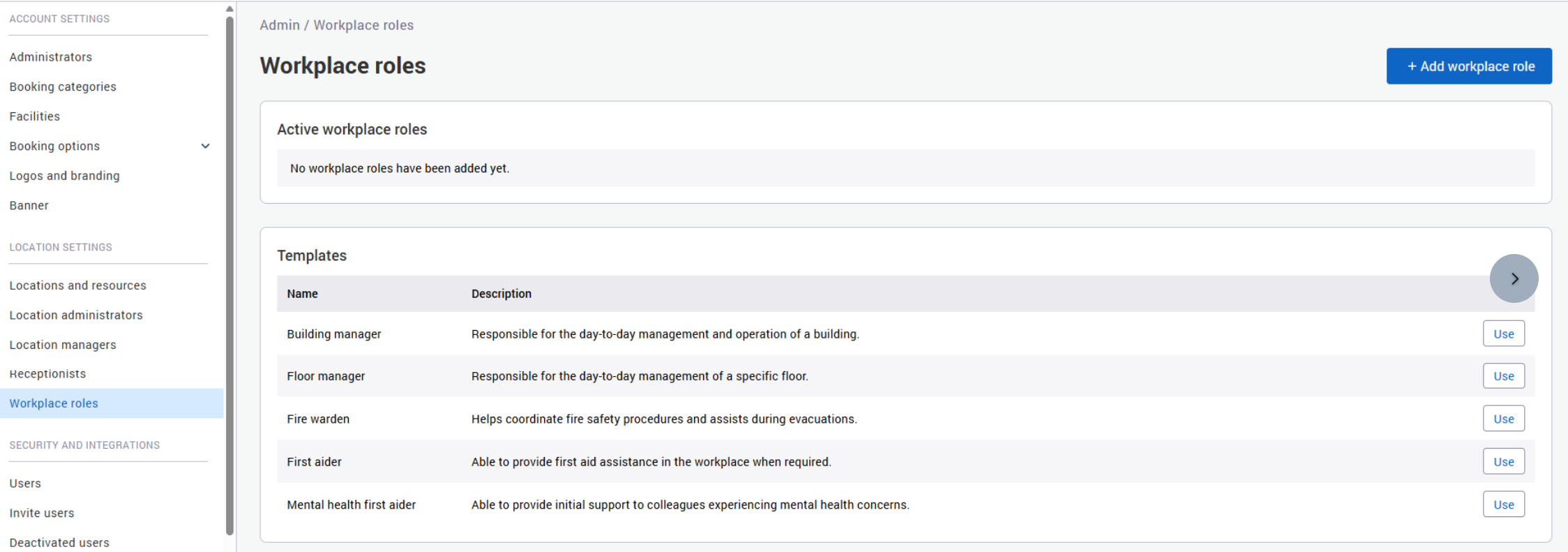
Create your own workplace roles or use predefined templates.
-
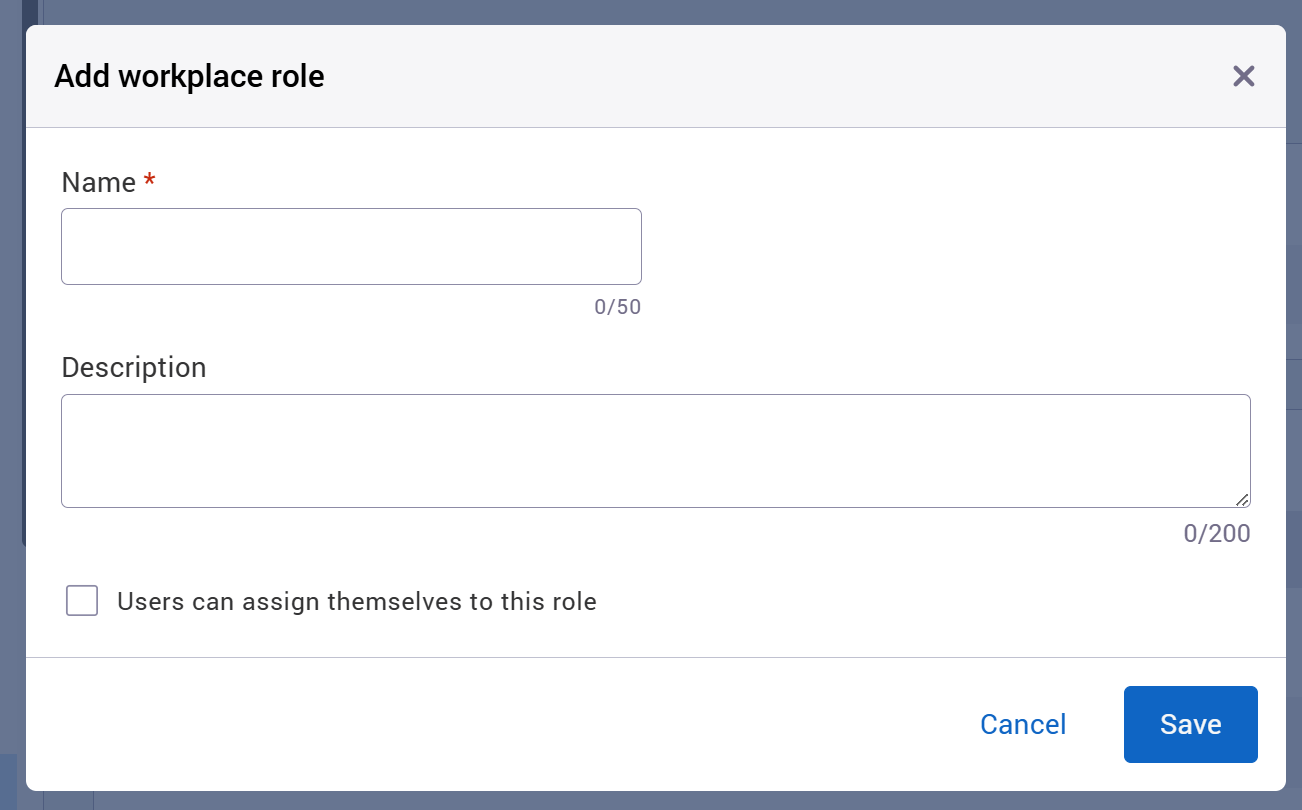
Add a name and description to each role.
-
Allow self-assignment for roles where required.
-
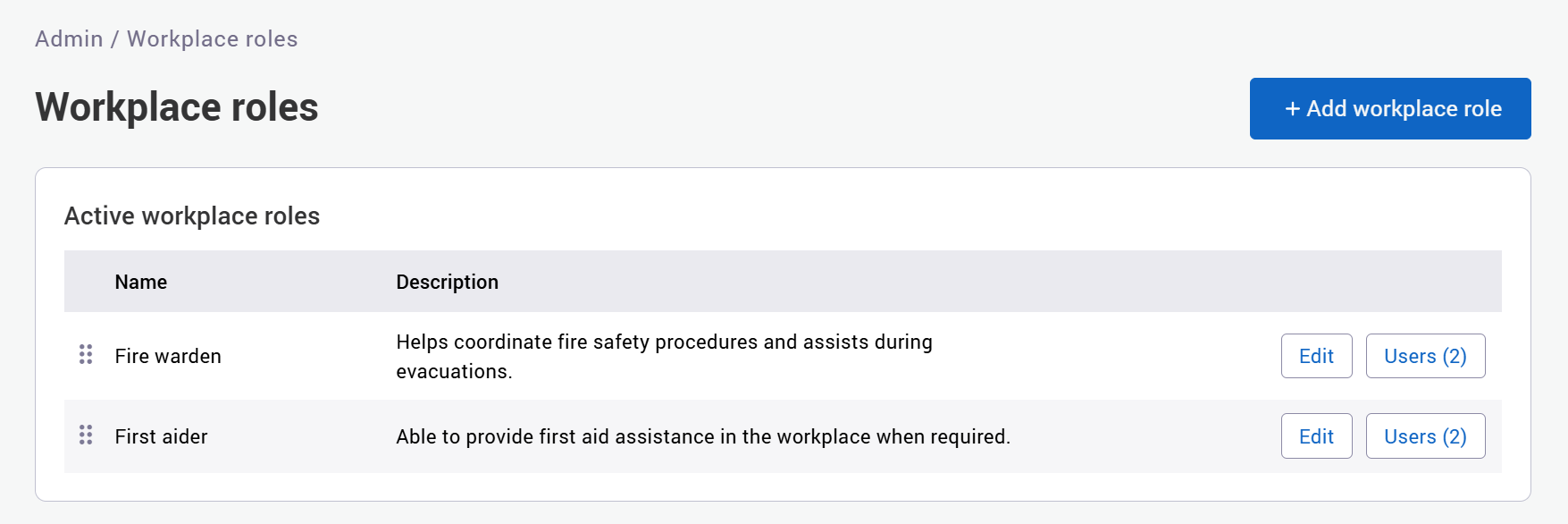
Assign one or more users to a role.
-
Reorder roles to control how they appear.
-
Delete roles you no longer need.
-
See how many users are assigned to each role.
Why use workplace roles
-
Help people find the right person quickly in the case of an emergency.
-
Support workplace safety and coordination.
-
Keep important responsibility information visible and easy to manage.
Create a workplace role
-
Go to the workplace roles area in the admin settings.
-
Select the option to create a new role.
-
Enter a Name.
-
Enter a Description if needed.
-
Choose whether to allow Self-assignment.
-
Save the role.
You can create your own role or start from a predefined template if one is available.
Assign workplace roles
You can assign workplace roles in 3 ways:
-
From Workplace roles by adding one or more users to a role.
-
From User management when you create or edit a user.
-
From the user profile when self-assignment is enabled for the role.
Use workplace roles in Find someone
Workplace roles are used in the Key People area of Find someone.
Select a building to see people with workplace roles who are working there today.
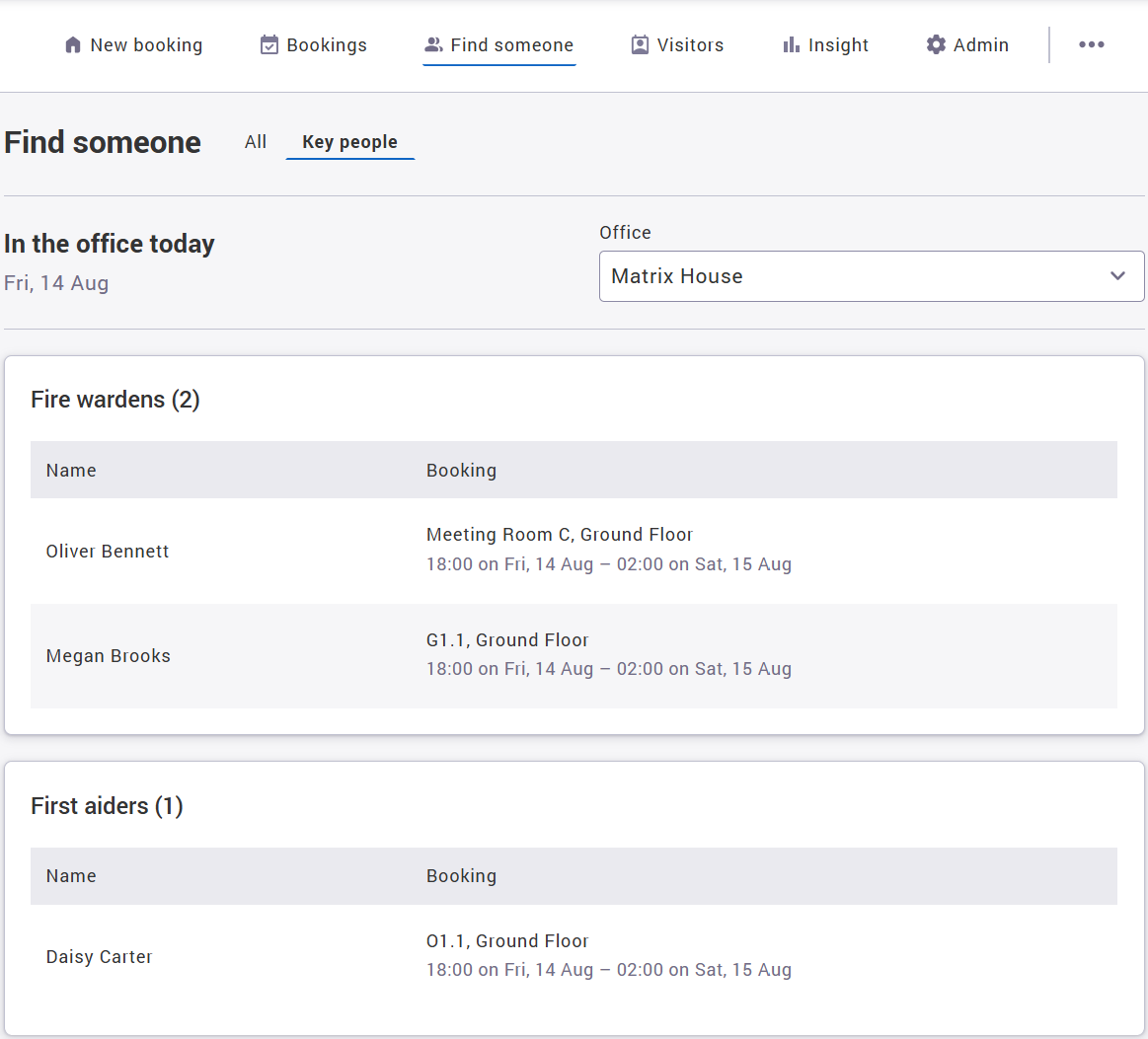
Select a person to view their contact details, floor plan location, and future bookings.
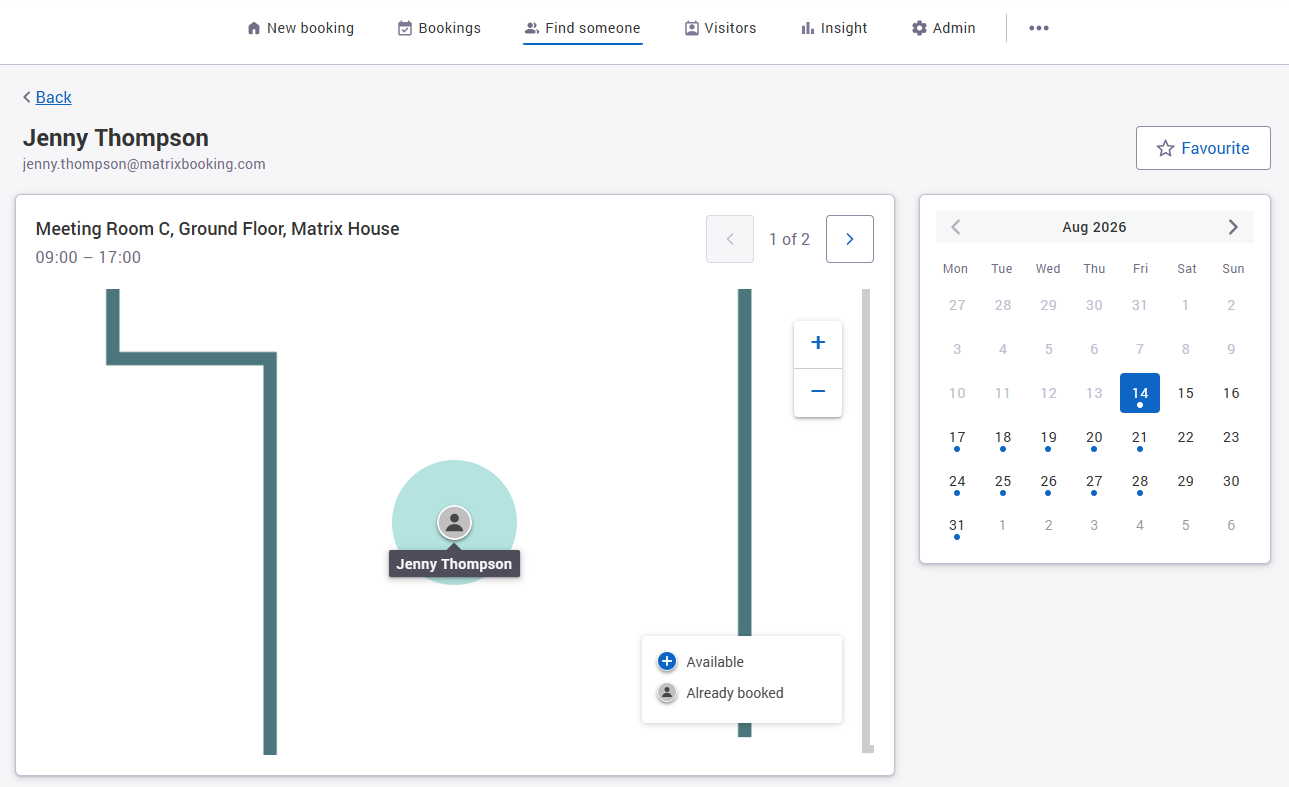
To display bookings in Key people, the relevant booking categories must have Enable for 'Find someone' switched on.
Find bookings by workplace role
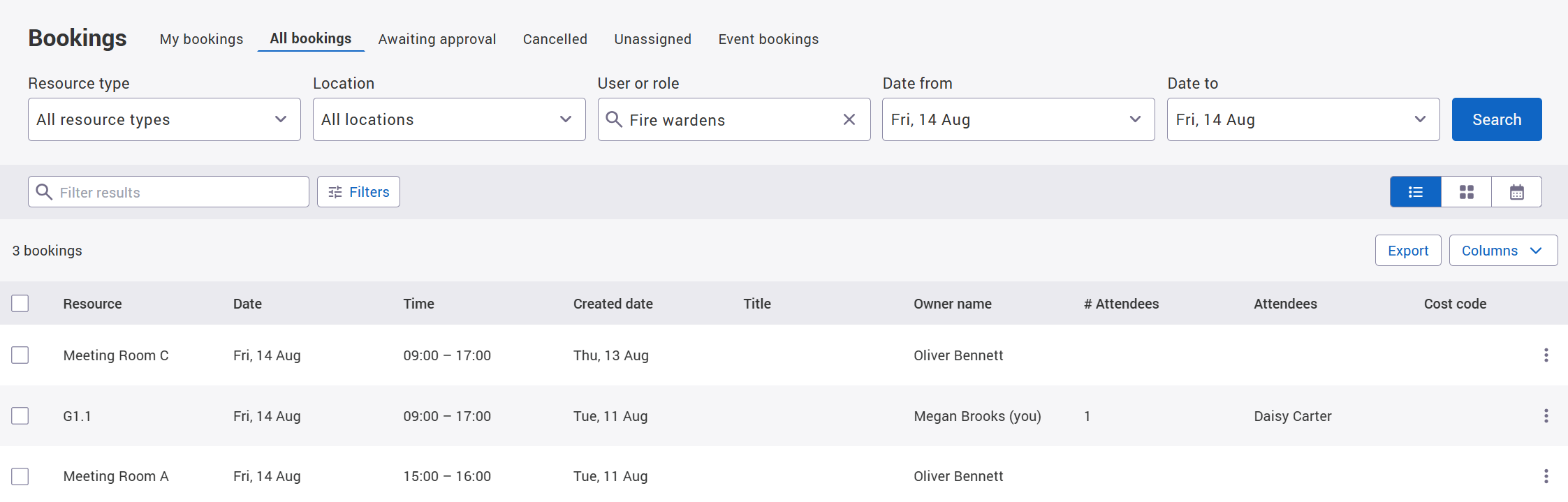
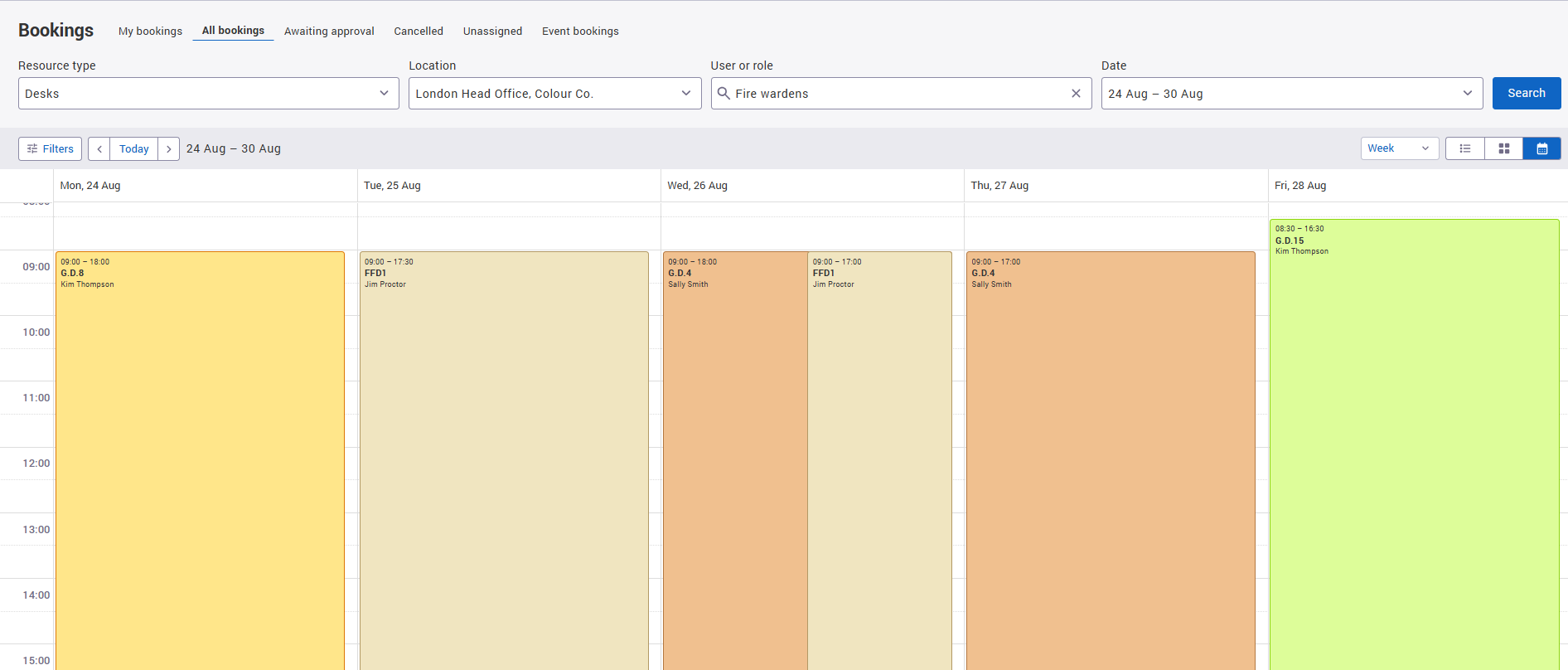
In the All bookings tab, you can search by workplace role in the “User or role” search parameter. This helps you find bookings for people who share the same role.

Best practice
-
Use clear role names that people will recognise straight away.
-
Keep descriptions short and practical.
-
Only enable self-assignment for roles that users should manage themselves.
-
Workplace roles should only be used to identify key people with additional responsibilities such as fire wardens. They should not be used for organisational groups or departments.