
Problem
-
I’m having a problem with the Arrivals app.
-
The Arrivals app has lost connection.
-
There’s connectivity issues with the Arrivals app. What do I do?
Solutions
The various user, setup, and technical errors that might arise when setting up and using the Arrivals app include:
-
There’s no active internet or network connection to the device (WiFi, ethernet, or Power over Ethernet (PoE)).
-
The account created is locked (as too many incorrect password attempts have been made).
No internet or network connection
For a network connection error:
-
Check the device’s network settings.
-
Check your router’s internet connection.
-
Check the Wi-Fi password – it may have expired.
Change kiosk user account to System/API account
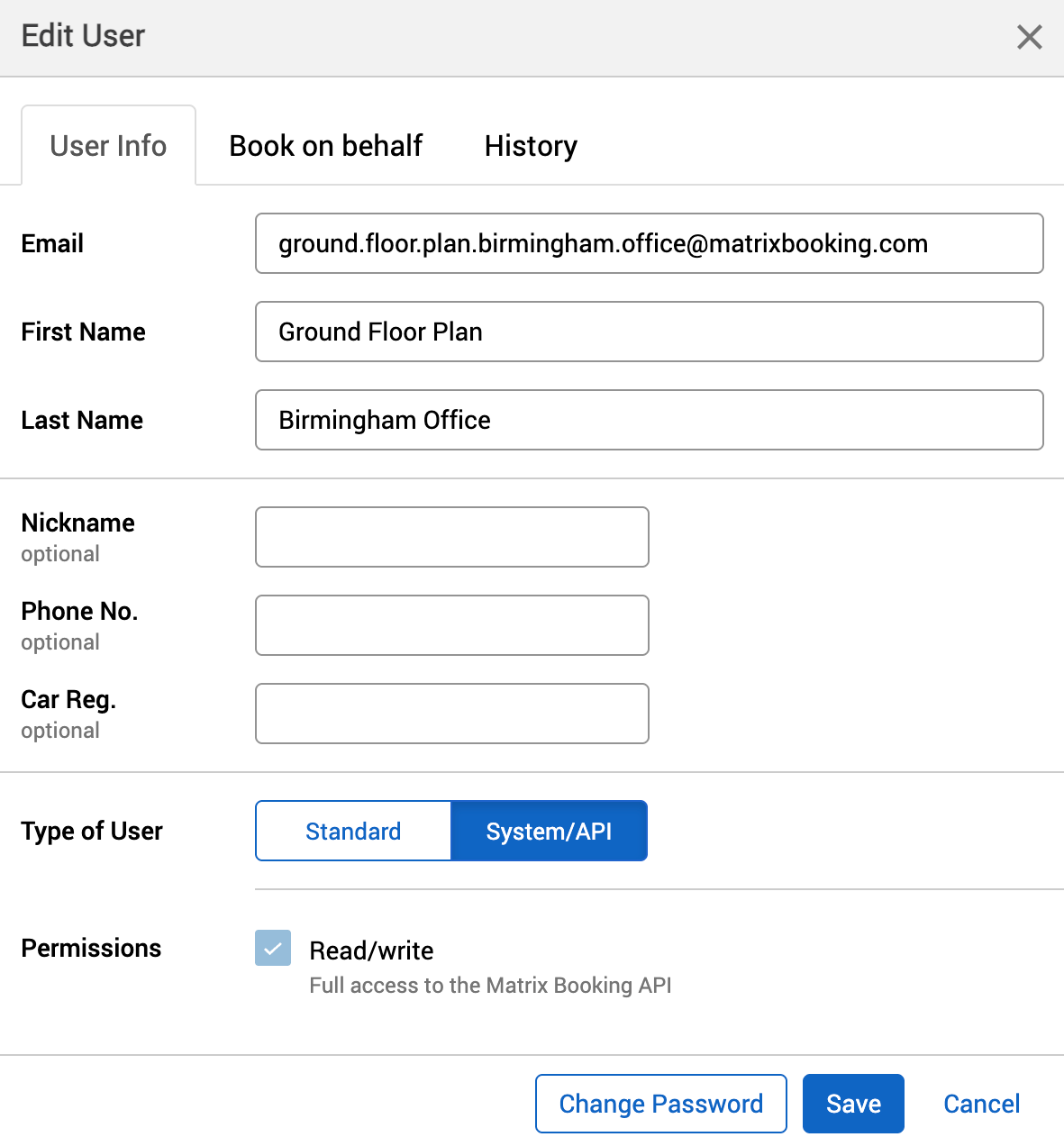
To change your kiosk’s user account type to a system account:
-
Select Admin in the navigation bar.
-
Select Users under the Security & Integrations section in the side menu.
-
Search for your kiosk user using the Filter search bar.
-
Select your kiosk user. The Edit User dialog will appear.
-
Select System/API.
-
Select Save.
Change kiosk user account password
To change the password of your kiosk user account:
-
Select Admin in the navigation bar.
-
Select Users under the Security and Integrations section in the side menu.
-
Search for your kiosk user using the Filter search bar.
-
Select your kiosk user. The Edit user dialog will appear.
-
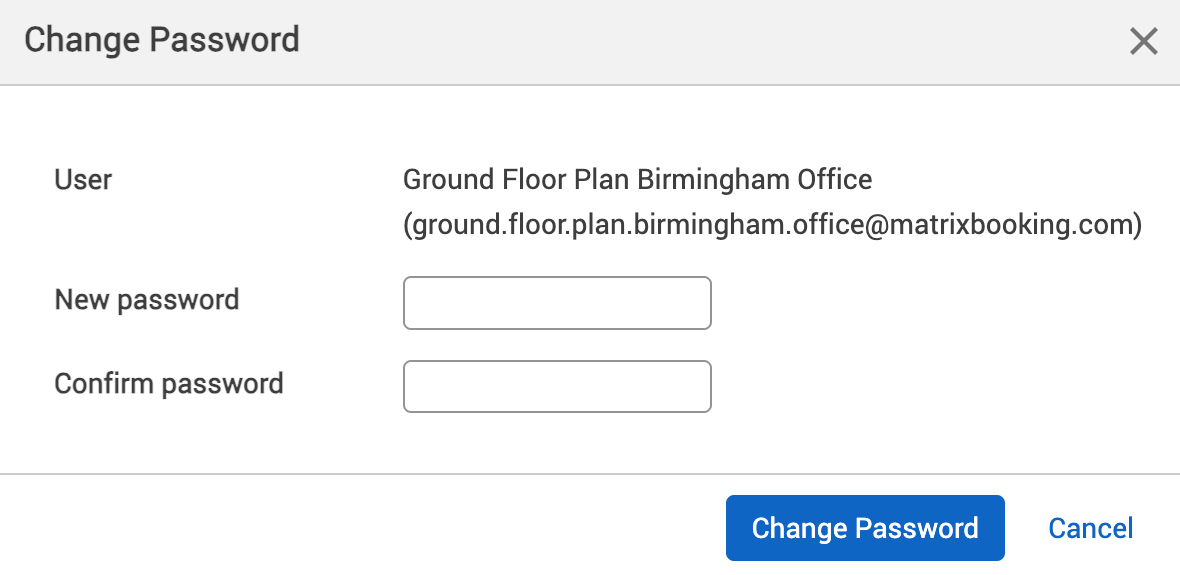
Select Change Password. The Change Password dialog will appear.
-
Enter a new password in the New password and Confirm password text boxes.
-
Select Change Password. The Change Password dialog will close and you’ll be taken back to the Edit user dialog.
-
Select Save.
Unlock kiosk user account
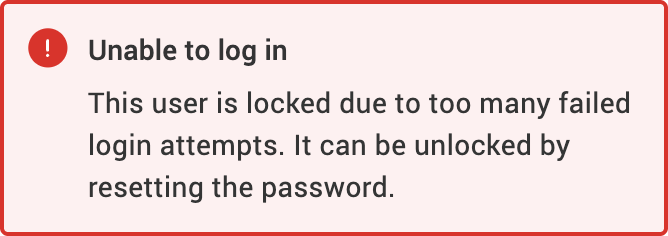
If a user makes 5 consecutive incorrect password attempts when logging in, the user will be locked out of Matrix Booking across all browsers and platforms of the application. The user will see this error message:
To unlock a user’s account as an administrator:
-
Search for the user using the Locked users filter in the Inactivity dropdown.
-
Select the vertical three-dots icon next to the user to open the more options menu.
-
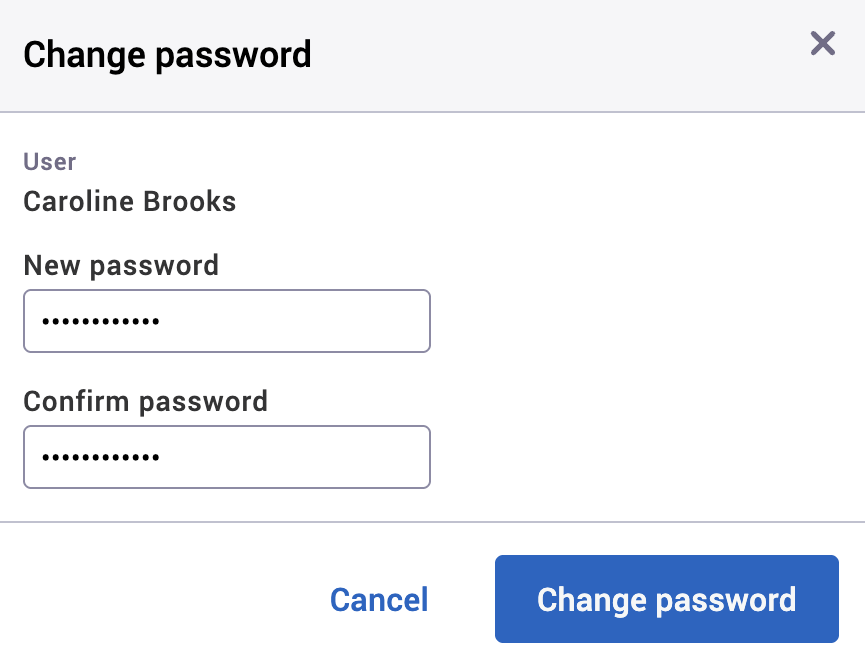
Select Change password. The Change password dialog will appear.
-
Enter the password in the New password and Confirm password textboxes.
-
Select Change password. This will close the Change password dialog and return you to the Users screen.
-
Let the user know what their new password.
Warning: if a signage or kiosk account is locked, all the devices with that log in using that account will show a warning message saying “unable to connect.” When the account is unlocked, the message will be removed and the account be used again.