
A guide for taking a Matrix Booking signage device out of kiosk mode, and confirming if a configuration file is present, and deleting as needed.
1. Exit kiosk mode
Signage and kiosk devices running Matrix Booking’s Mobile Device Management (MDM) are locked in kiosk mode. This keeps users inside the Matrix Booking app and makes sure it restarts automatically if the device reboots.
If you only need to assign the device to a different room, you don’t need to exit kiosk mode - use the app’s own change settings option instead. Only exit kiosk mode if you need to change tablet-level settings or remove a configuration file.
Steps
-
Turn the device off and on.
-
As soon as the dark Matrix Booking wallpaper loads, tap the screen anywhere 10 times quickly.
-
If nothing happens, repeat this until an Enter password or PIN dialog appears.
-
If the dialog doesn’t appear and the app starts instead, the window to exit kiosk mode has been missed, go back to step 1 and try again.
-
When the dialog appears, enter the password.
If you don’t know the password, raise a Signage app support ticket and the Matrix Booking Hardware Team can provide it.
Once you’ve exited kiosk mode, you can make the changes you need. To put the device back into kiosk mode afterwards, either:
-
Open the Hexnode MDM Kiosk app and tap ACTIVATE, or
-
Turn the device off and on again - it will boot back into kiosk mode automatically.
2. Checking for a configuration file
To check if the app has a configuration file to configure the application complete the below.
-
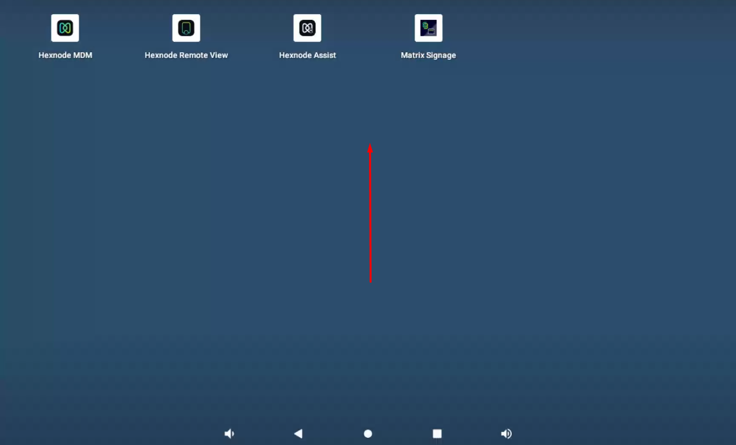
Swipe up from the middle of the screen to view all apps.
-
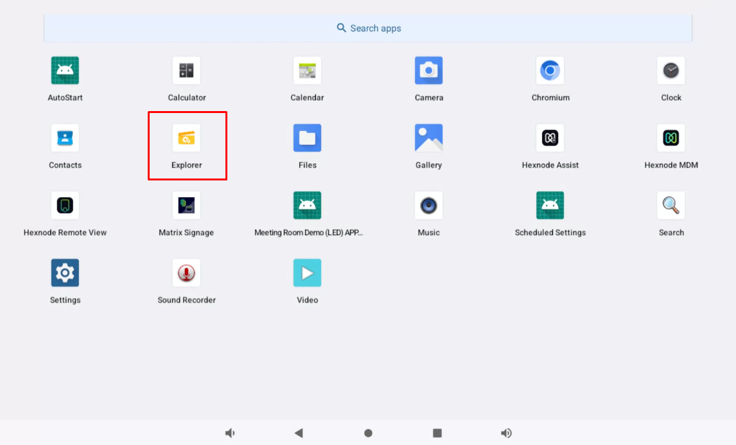
Tap the Explorer app app to open it.
-
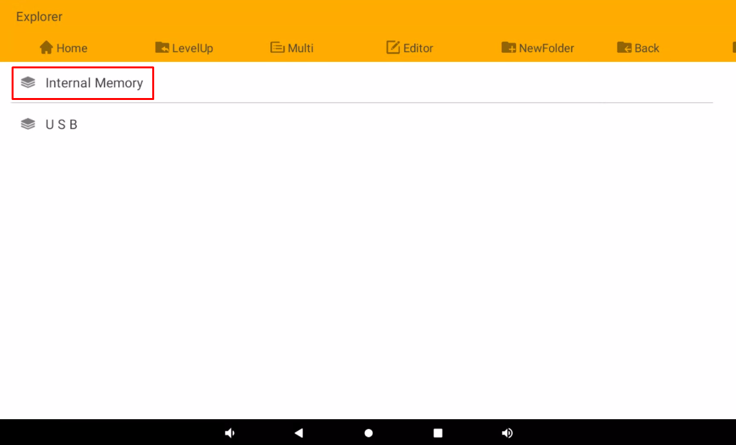
Tap Internal Memory.
-
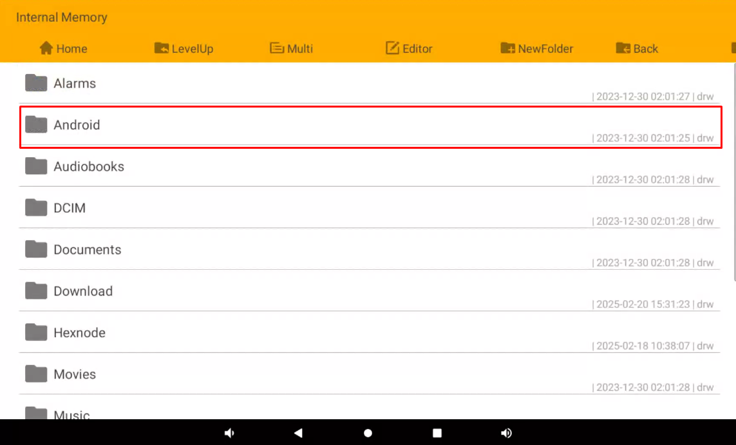
Tap Android.
-
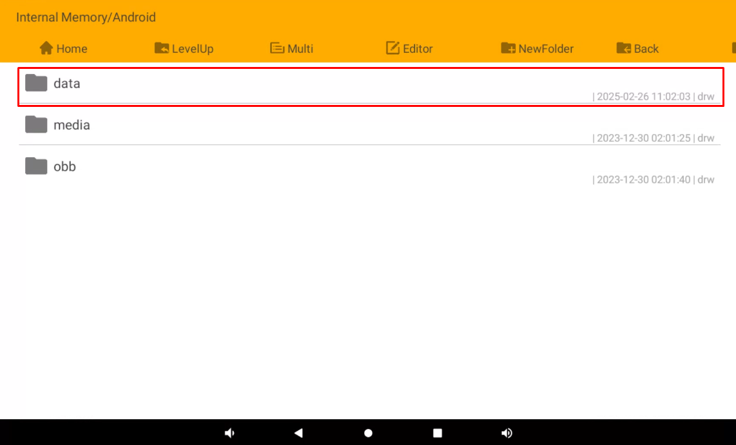
Tap data.
-
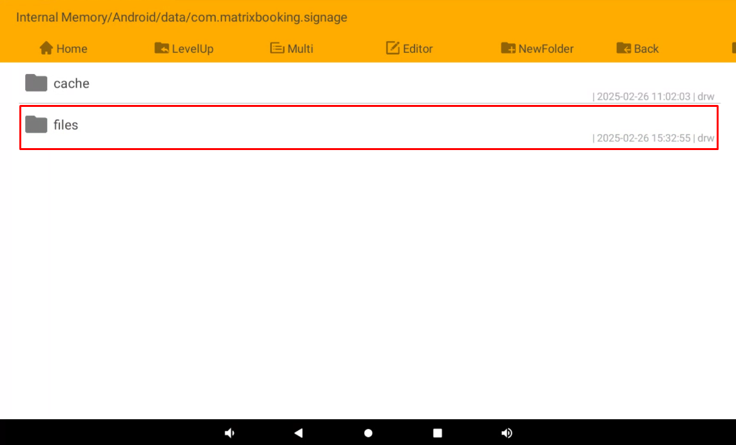
Tap com.matrixbooking.signage.
-
Tap files.
-
Check whether a configuration file already exists in this folder. If one is present, press and hold it, then select Delete from the pop-up menu to remove it before continuing. Leaving an old configuration file in place can cause the device to load the wrong resource or fail to apply the new configuration.
-
Restart the device and it will re-enter kiosk mode, you will the be able to login with the user name a password.
-
Follow the steps in this guide to complete setup - https://docs.matrixbooking.com/kb/signage-application-configuration-and-user-guide